Azure Key Vault Secrets Management
| Project Category | Cloud Security |
|---|---|
| Platform | Microsoft Azure |
| Core Technologies | Azure Key Vault, Azure CLI, Microsoft Entra ID, Linux |
| Project Focus | Secure secrets storage and controlled retrieval |
Project Overview
Built a centralized secrets-management solution in Azure Key Vault and validated secure secret retrieval from an Ubuntu virtual machine through Azure CLI.
1. Business Scenario
Application credentials should not be stored in source code or local configuration files. This implementation moves API keys, database passwords, and connection strings into a controlled vault with authenticated access.
2. Project Objectives
- Deploy and configure Azure Key Vault.
- Store application secrets securely.
- Configure an Ubuntu VM and Azure CLI.
- Authenticate to Azure and retrieve authorized secrets.
- Validate access controls and successful secret retrieval.
3. Lab Environment
| Component | Value |
| Cloud Platform | Microsoft Azure |
| Subscription | Azure subscription 1 |
| Region | East US 2 |
| Resource Group | rg-ycs-keyvault-lab-01 |
| Key Vault | kv-ycs-01 |
| Virtual Machine | vm-ycs-app-01 |
| Operating System | Ubuntu Server 24.04 LTS |
| Authentication | Azure Device Login |
| Access Method | Native SSH |
| Management Tool | Azure CLI |
4. Resources Created
| Resource Type | Resource Name |
| Resource Group | rg-ycs-keyvault-lab-01 |
| Azure Key Vault | kv-ycs-01 |
| Linux Virtual Machine | vm-ycs-app-01 |
| Secret | ApiKey |
| Secret | DatabasePassword |
| Secret | StorageConnectionString |
5. Project Architecture
The architecture illustrates the implemented access flow: an administrator connects to the Ubuntu VM over SSH, Azure CLI authenticates the user through Microsoft Entra ID using Device Code authentication, and the authenticated CLI session retrieves the three configured secrets from Azure Key Vault over encrypted HTTPS/TLS communication.
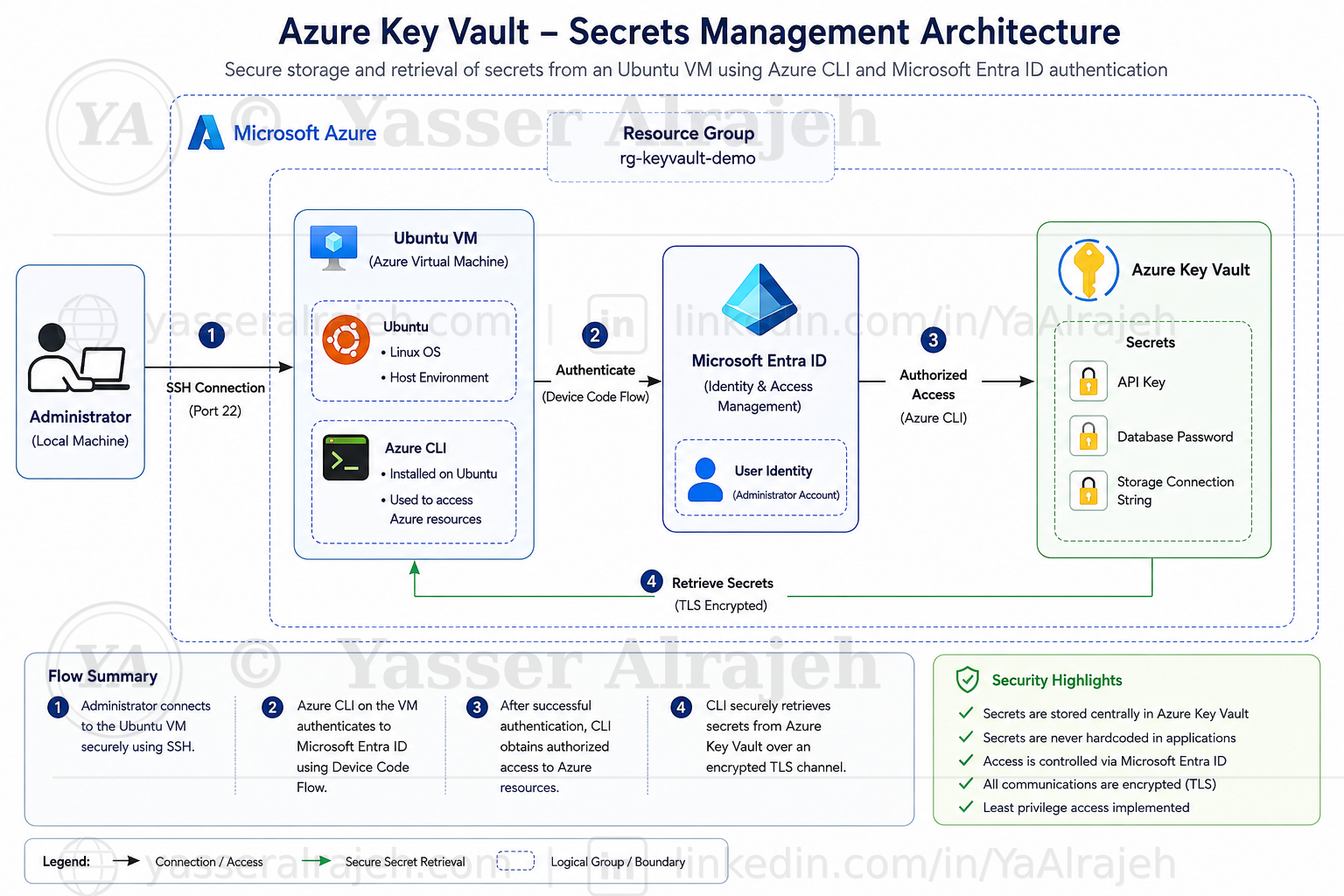
Architecture — Ubuntu VM uses Azure CLI with Microsoft Entra user authentication to retrieve ApiKey, DatabasePassword, and StorageConnectionString from Azure Key Vault.
6. Technologies Used
Microsoft Azure
Azure Resource Manager
Azure Key Vault
Azure Virtual Machines
Ubuntu Server 24.04 LTS
Azure CLI
OpenSSH
Windows PowerShell
Device Code Authentication
7. Security Features Implemented
The project demonstrates the following security practices:
Centralized storage of application secrets in Azure Key Vault.
Sensitive credentials kept outside application source code and local configuration files.
Authenticated Azure CLI access using a Microsoft Entra user identity.
Secret access performed only after successful authentication and authorization.
Encrypted communication with Azure services over HTTPS/TLS.
Secret values redacted from portfolio screenshots to prevent credential exposure.
8. Implementation Steps
8.1 Create the Resource Group
A dedicated Resource Group was created to organize all project resources under a single management boundary.
| Property | Value |
| Resource Group | rg-ycs-keyvault-lab-01 |
| Region | East US 2 |
Using a dedicated Resource Group simplifies administration, access control, cost tracking, and resource cleanup after the project is completed.
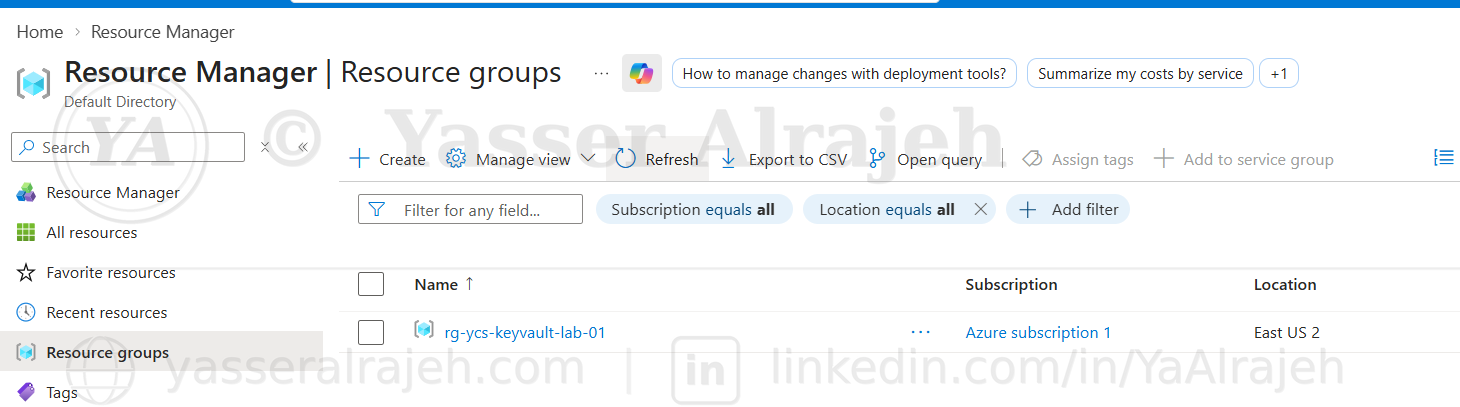
Resource Manager — Resource groups showing rg-ycs-keyvault-lab-01 in East US 2.
8.2 Deploy Azure Key Vault
A new Azure Key Vault was deployed successfully using Azure Resource Manager.
| Property | Value |
| Deployment Name | kv-ycs-01 |
| Resource Type | Key Vault |
| Resource Name | kv-ycs-01 |
| Deployment Status | Successful |
The Key Vault acts as a centralized and highly secure repository for storing application secrets, passwords, certificates, and cryptographic keys.
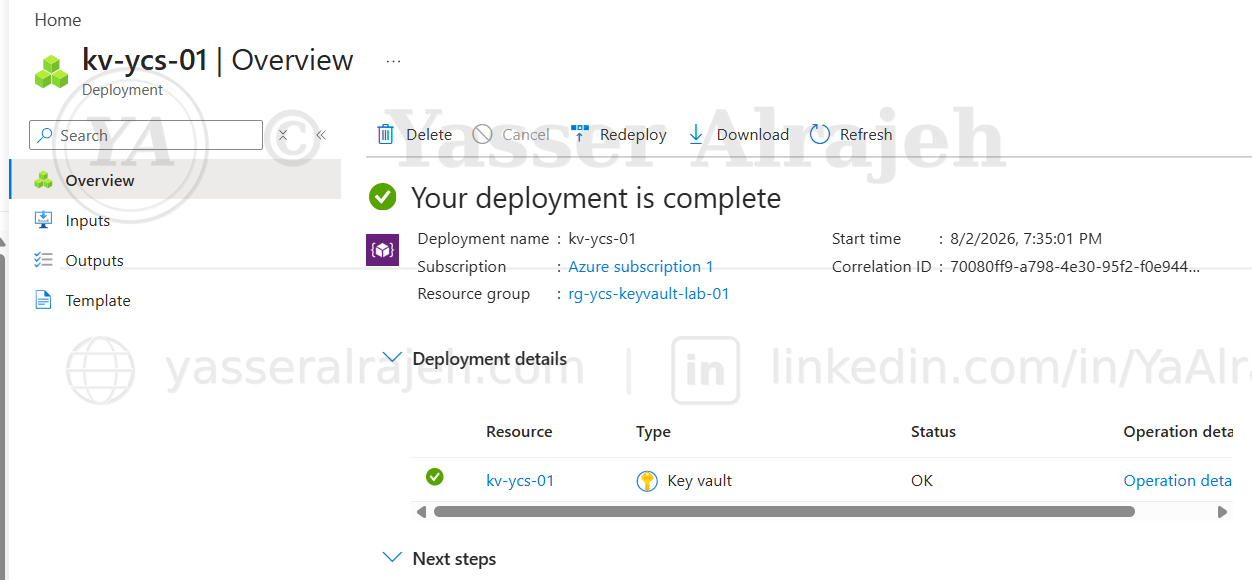
Deployment overview confirming kv-ycs-01 was deployed successfully to rg-ycs-keyvault-lab-01.
8.3 Create Application Secrets
Three application secrets were created inside Azure Key Vault.
| Secret Name | Purpose |
| ApiKey | API authentication key |
| DatabasePassword | Database credentials |
| StorageConnectionString | Azure Storage connection string |
All secrets are encrypted at rest by Azure Key Vault and protected through Azure security controls.
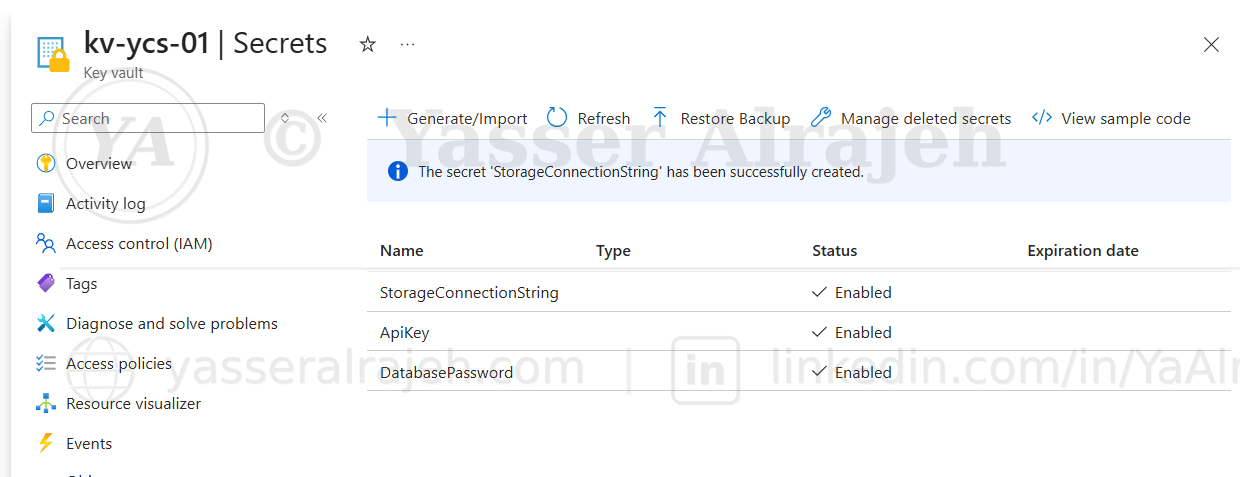
kv-ycs-01 Secrets pane confirming ApiKey, DatabasePassword, and StorageConnectionString were created and enabled.
8.4 Verify Secret Configuration
The StorageConnectionString secret was opened to verify its configuration.
Verified properties included:
Secret Identifier
Creation Time
Update Time
Secret Status
Secret Value
Enabled State
The secret was confirmed as enabled and ready for secure retrieval.
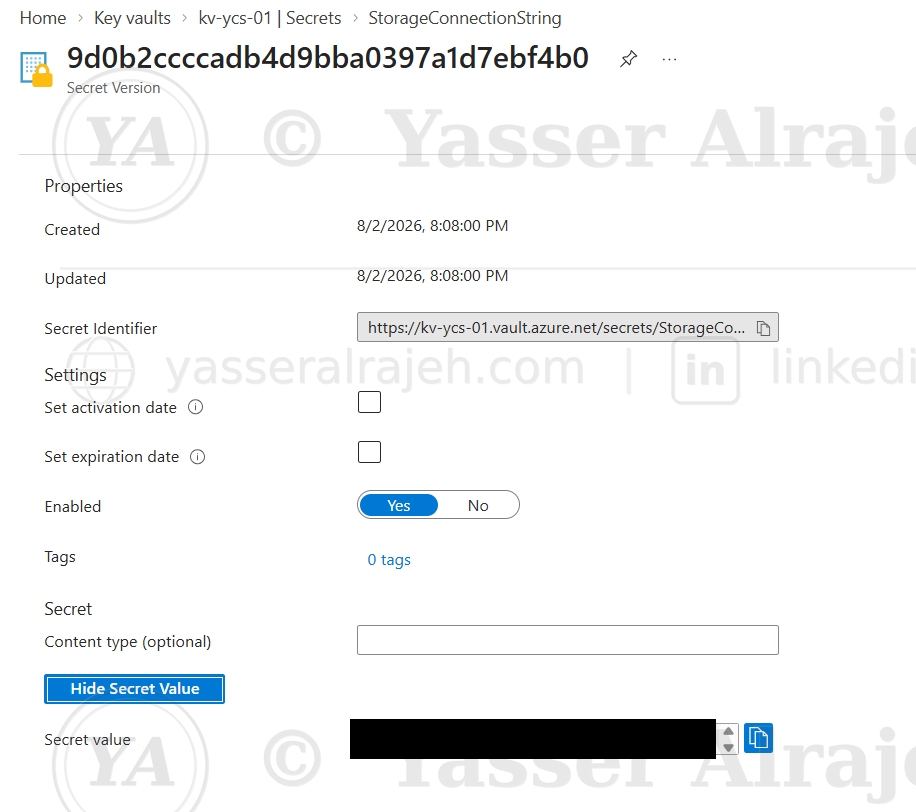
StorageConnectionString secret properties — confirmed enabled. The secret value is redacted for this portfolio.
8.5 Create Ubuntu Virtual Machine
An Ubuntu Server virtual machine was provisioned to simulate an application server accessing Azure Key Vault.
| Property | Value |
| VM Name | vm-ycs-app-01 |
| Operating System | Ubuntu Server 24.04 LTS |
| Region | East US 2 |
| Authentication | Local User |
| Username | azureuser |
The virtual machine represents a production workload that securely retrieves secrets from Azure Key Vault.
8.6 Configure SSH Connectivity
Azure automatically generated the SSH connection information.
| Property | Value |
| Protocol | SSH |
| Port | 22 |
| Public IP | 20.246.80.154 |
| Username | azureuser |
Azure verified that TCP port 22 was accessible through the Network Security Group. This validation confirms that remote administrative access is available.
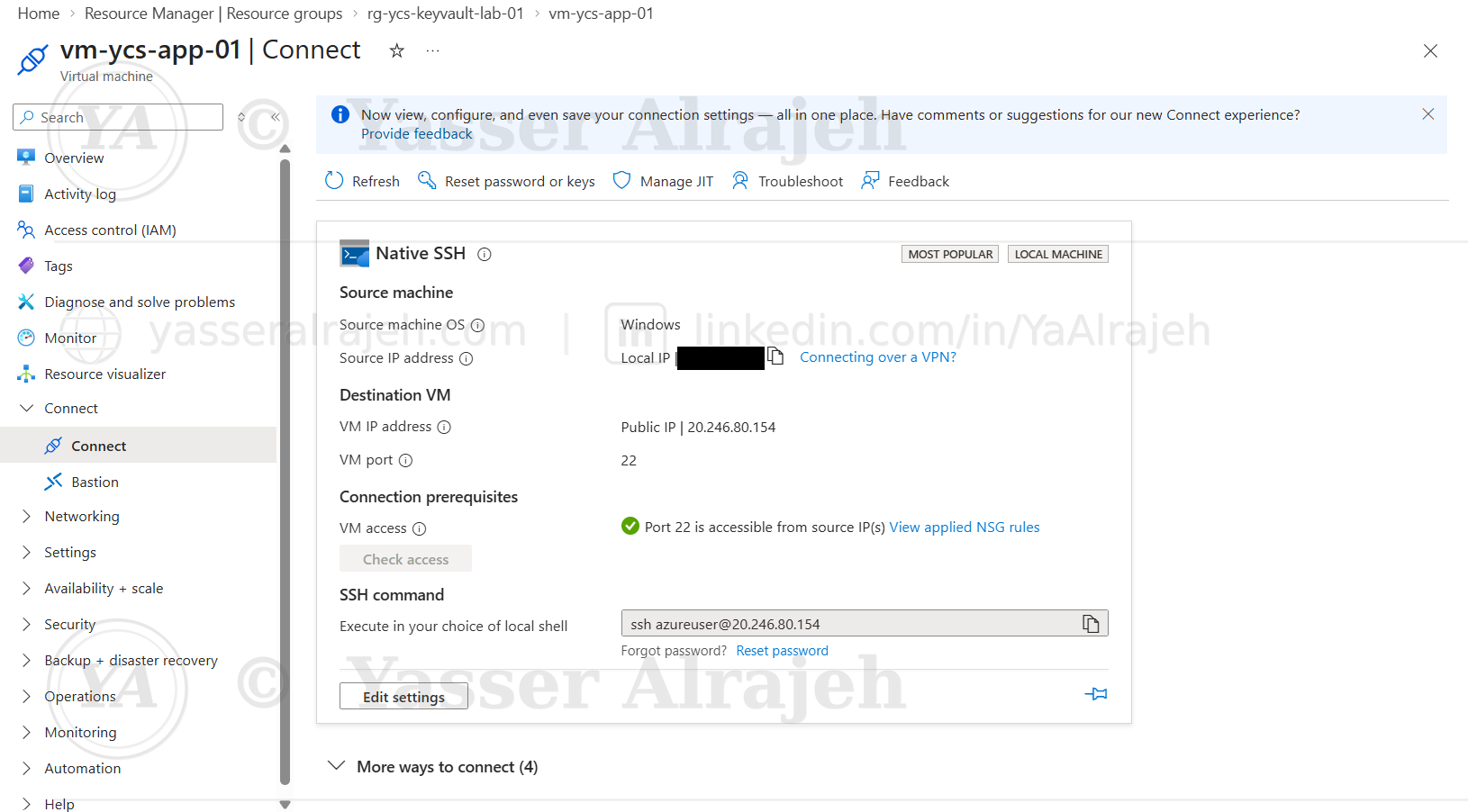
Native SSH connection blade — port 22 verified as accessible. The source (client) IP address is redacted for privacy.
8.7 Connect to the Linux Virtual Machine
A secure SSH session was established from Windows PowerShell.
Command executed:
ssh azureuser@20.246.80.154After entering the local account password, the connection was successfully established. The administrator was presented with the Ubuntu login banner and shell prompt.
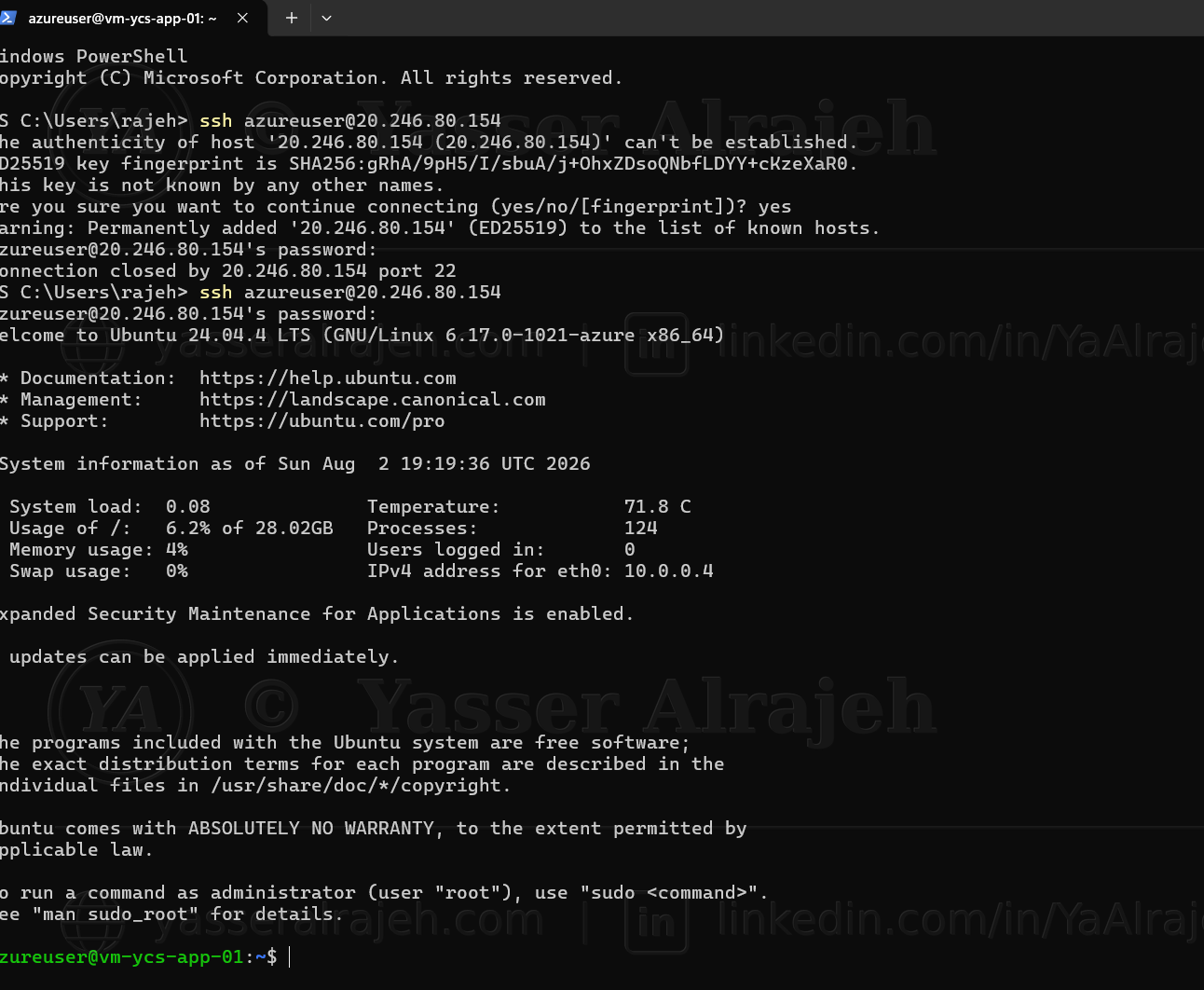
Windows PowerShell — SSH session established, Ubuntu 24.04.4 LTS login banner displayed.
8.8 Install Azure CLI
Azure CLI was installed inside Ubuntu to allow secure interaction with Azure resources.
The installation completed successfully and included:
Package download
Dependency installation
Repository configuration
Azure CLI version installation
Azure CLI provides a command-line interface for managing Azure resources directly from Linux.
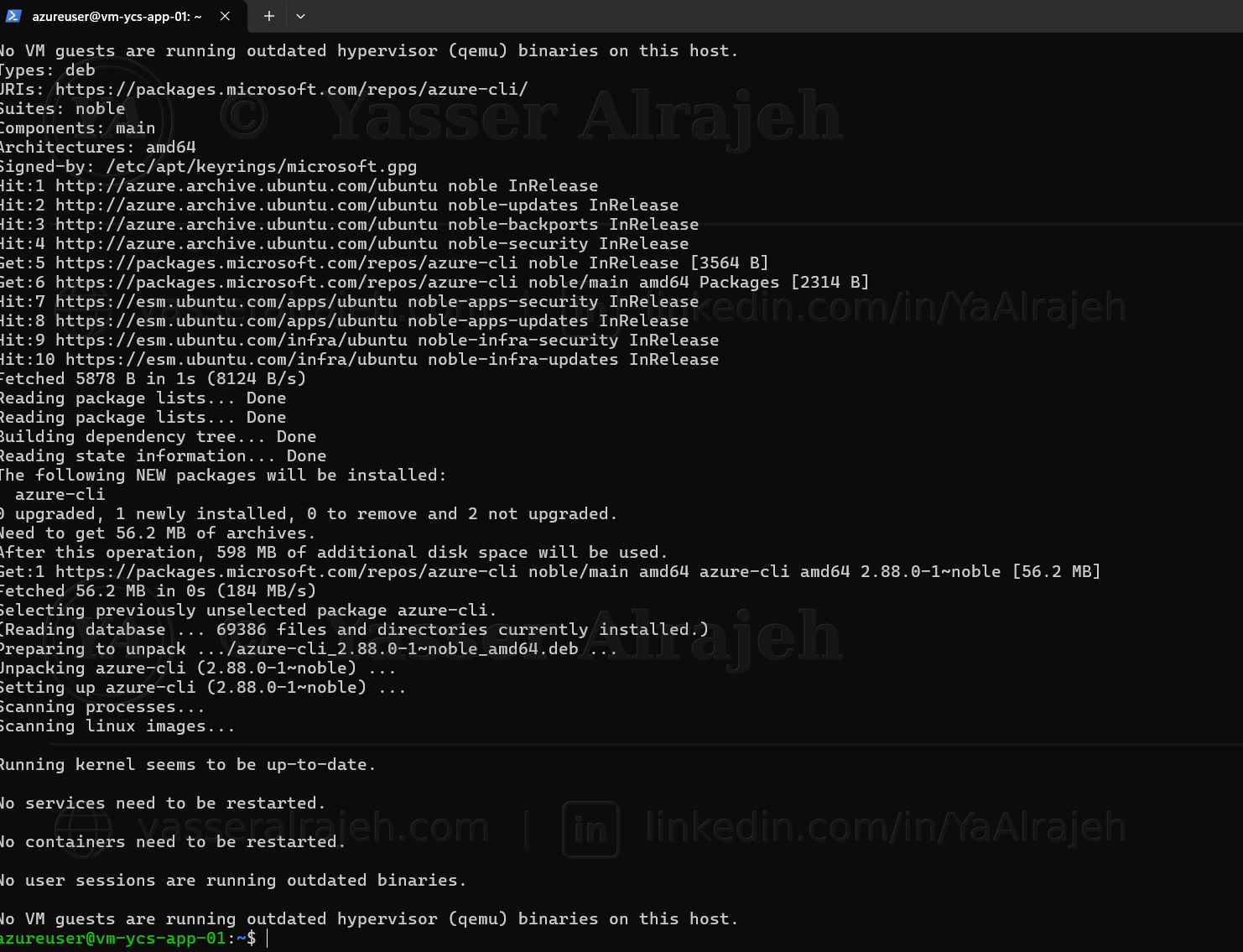
Azure CLI package installation completing successfully on the Ubuntu virtual machine.
8.9 Authenticate Azure CLI
Azure CLI authentication was initiated using Device Code authentication.
Command executed:
az login --use-device-codeAzure generated a temporary authentication code and instructed the user to visit Microsoft's device login portal. This authentication method is commonly used for systems without a graphical web browser.

az login --use-device-code — Azure generates a one-time device
code (redacted here since it grants sign-in access).
8.10 Complete Microsoft Authentication
The authentication code generated by Azure CLI was entered into Microsoft's authentication page.
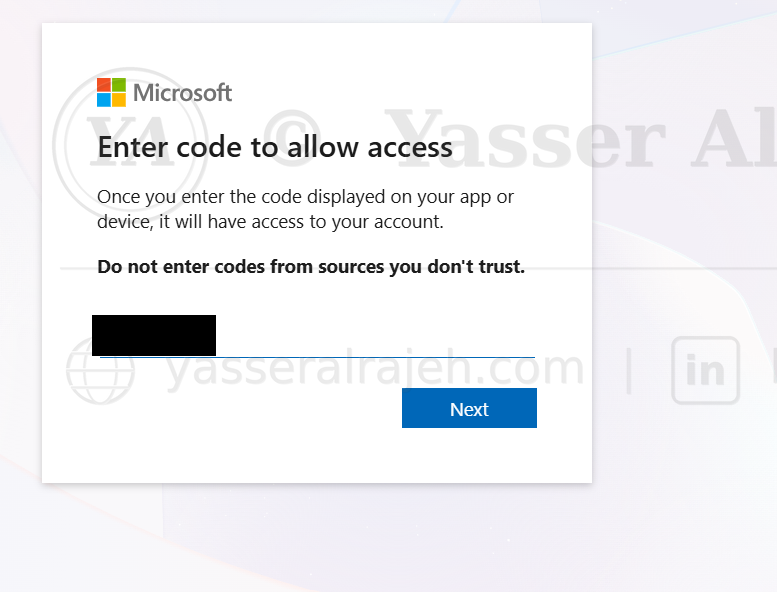
Microsoft device login page — entering the one-time code (redacted).
After successful authentication, Azure CLI established an authenticated session using the Microsoft Entra user identity. The CLI could then access Azure resources according to the permissions assigned to that identity, without storing the user password in the terminal session.
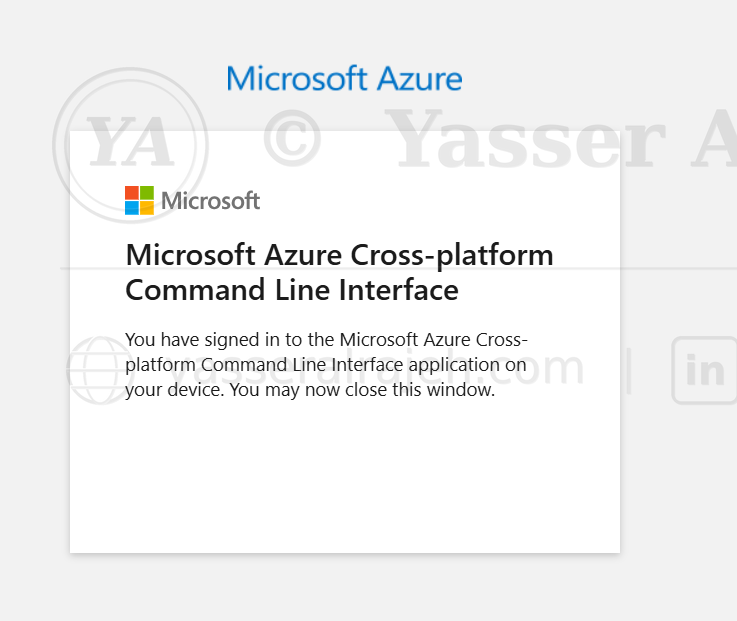
Microsoft Azure CLI confirming successful sign-in.
9. Azure CLI Operations, Validation, and Project Outcome
9.1 Verify Azure Authentication
After completing the Device Code authentication process, the active Azure subscription was verified using Azure CLI.
Command executed:
az account showPurpose
The command displays information about the currently authenticated Azure account and confirms that Azure CLI is connected to the correct subscription.
Verification Results
The following information was successfully returned:
Active Azure Subscription
Subscription ID
Tenant ID
Tenant Name
User Account
Azure Cloud Environment
Subscription State
This validation confirms that Azure CLI is authenticated with the intended Microsoft Entra user identity and connected to the expected Azure subscription.
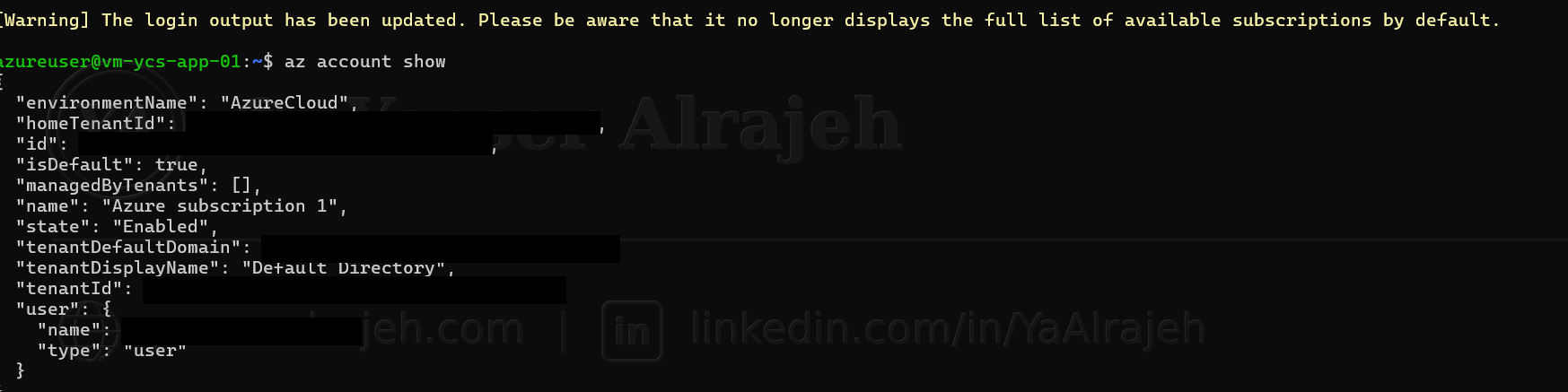
az account show — subscription and tenant details confirmed
(tenant/subscription IDs and account email redacted for
privacy).
9.2 List Available Secrets
After authentication was verified, Azure CLI was used to display all secrets stored inside Azure Key Vault.
Command executed:
az keyvault secret list \
--vault-name kv-ycs-01 \
--output table
Result
Azure CLI successfully returned the following secrets:
| Secret |
| ApiKey |
| DatabasePassword |
| StorageConnectionString |
This confirmed that:
The Key Vault exists.
Azure CLI can successfully communicate with Azure Key Vault.
The authenticated account has sufficient permissions to enumerate stored secrets.

az keyvault secret list — all three secrets returned with their
status confirmed as enabled.
9.3 Retrieve the API Key
The API key stored inside Azure Key Vault was retrieved using Azure CLI.
Command executed:
az keyvault secret show \
--vault-name kv-ycs-01 \
--name ApiKey \
--query value -o tsv
Purpose
Instead of storing API credentials inside application source code, Azure Key Vault securely stores the secret and returns it only after successful authentication.
Result
Azure CLI successfully returned the stored API key.

az keyvault secret show — ApiKey retrieved successfully. The
returned value is redacted for this portfolio.
9.4 Retrieve the Database Password
The database password was retrieved directly from Azure Key Vault.
Command executed:
az keyvault secret show \
--vault-name kv-ycs-01 \
--name DatabasePassword \
--query value -o tsv
Purpose
This command demonstrates secure retrieval of database credentials without embedding passwords inside application configuration files.
Result
The password was successfully returned by Azure Key Vault after verifying the user's identity and permissions.

az keyvault secret show — DatabasePassword retrieved
successfully. The returned value is redacted for this
portfolio.
9.5 Retrieve the Storage Connection String
The final secret retrieved from Azure Key Vault was the storage connection string.
Command executed:
az keyvault secret show \
--vault-name kv-ycs-01 \
--name StorageConnectionString \
--query value -o tsv
Purpose
Applications commonly use storage connection strings to access Azure Storage Accounts. Storing them in Azure Key Vault prevents accidental exposure and simplifies credential management.
Result
Azure CLI successfully retrieved the connection string stored in the Key Vault.

az keyvault secret show — StorageConnectionString retrieved
successfully. The returned value is redacted for this
portfolio.
10. Implementation Validation and Security Outcomes
The completed lab was validated across deployment, authentication, connectivity, and secret retrieval.
| Validation Item | Status |
| Dedicated Resource Group | Completed |
| Azure Key Vault Deployment | Completed |
| Ubuntu VM and SSH Connectivity | Completed |
| Azure CLI Installation | Completed |
| Microsoft Entra User Authentication | Completed |
| Azure Subscription Verification | Completed |
| Secret Enumeration | Completed |
| Secure Secret Retrieval | Completed |
Security Outcomes
API keys, database credentials, and storage connection strings were centralized in Azure Key Vault rather than stored in application code.
Secret retrieval required an authenticated Microsoft Entra user identity with sufficient permissions.
Azure CLI successfully retrieved all three configured secrets from the Ubuntu VM.
Sensitive secret values and identity details were redacted from portfolio evidence.